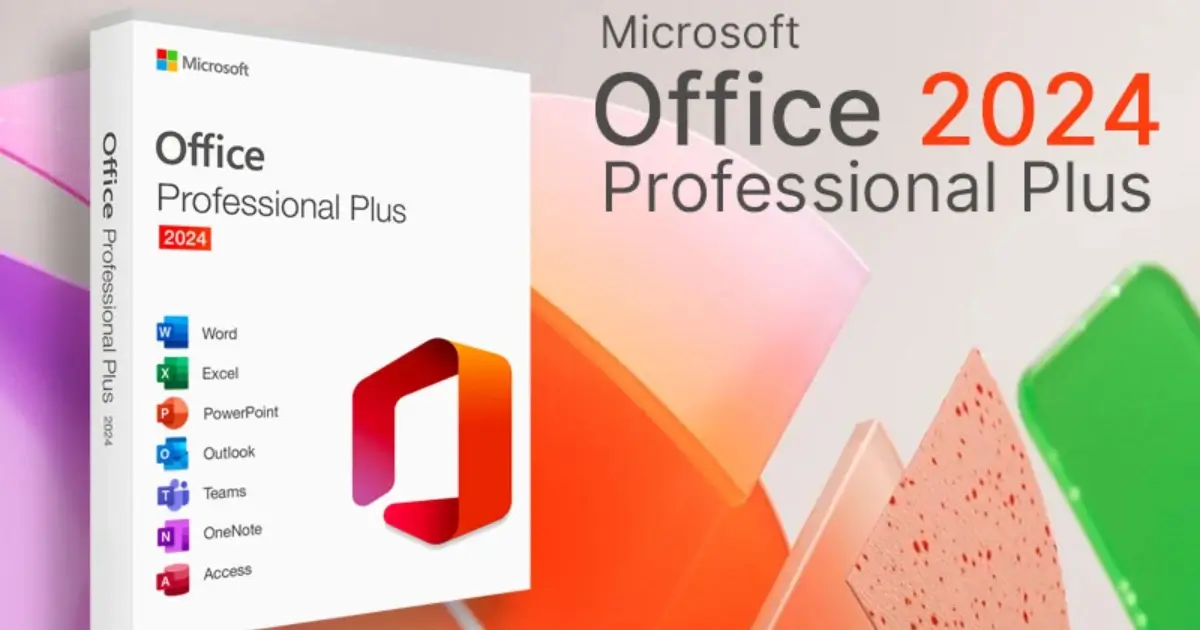
Microsoft Office 2024 Professional Plus is the latest version of the world’s most popular productivity suite, offering powerful features for business professionals, students, and home users. If you have purchased a genuine license for Office 2024, follow this step-by-step installation and activation guide to set it up quickly and securely.
Step 1: Uninstall Previous Versions of Microsoft Office
Before installing Microsoft Office 2024 Professional Plus, it’s recommended to remove older Office versions from your PC to avoid compatibility issues.
To uninstall an older version of Office:
1️⃣ Open Control Panel → Click on Programs and Features
2️⃣ Find Microsoft Office (2019, 2021, or 365) in the list
3️⃣ Click Uninstall and follow the on-screen instructions
4️⃣ Restart your computer once the uninstallation is complete
💡 Why uninstall previous versions?
Running multiple Office versions on the same device may lead to activation errors and performance issues.
Step 2: Download Microsoft Office 2024 Professional Plus Setup File
Once you’ve uninstalled any old versions, the next step is to download the correct Office 2024 setup file based on your system’s specifications.
🔹 Download Microsoft Office 2024 Professional Plus:
✅ 64-bit Version
✅ 32-bit Version
⚠️ Important: If you’re unsure whether your PC is 32-bit or 64-bit, check by:
1️⃣ Press Windows + R and type msinfo32, then hit Enter
2️⃣ Look for “System Type” → It will display either x64-based PC (64-bit) or x86-based PC (32-bit)
Step 3: Install Microsoft Office 2024 Professional Plus
After downloading the setup file, follow these installation steps:
1️⃣ Right-click the downloaded .exe file and select “Run as Administrator”
2️⃣ Click “Yes” when the User Account Control (UAC) prompts for permission
3️⃣ The Microsoft Office Installer will open → Click “Install”
4️⃣ Wait for the installation to complete (it may take a few minutes)
5️⃣ Once finished, restart your computer to finalize the installation
🔹 Pro Tip: Ensure you have enough storage space before installation (at least 4GB free space recommended).
Step 4: Activate Microsoft Office 2024 Professional Plus
After installation, you need to activate Office using the product key.
How to Enter Your Microsoft Office 2024 Product Key:
1️⃣ Open any Office application (e.g., Microsoft Word)
2️⃣ Click on “Account” from the left panel
3️⃣ Look for the “Change Product Key” or “Add Product Key” option
4️⃣ Enter your 25-digit activation key (e.g., XXXXX-XXXXX-XXXXX-XXXXX-XXXXX)
5️⃣ Click “Activate Office”
Alternative Activation via Microsoft Online
If the activation prompt doesn’t appear:
1️⃣ Go to https://setup.office.com/
2️⃣ Sign in with your Microsoft Account
3️⃣ Enter your product key and follow the activation instructions
Common Activation Errors & Fixes
Some users may experience activation issues. Below are common errors and how to fix them:
🔴 “The product key is invalid or already used.”
✅ Solution: Ensure the key is entered correctly and not used on another device.
🔴 “Can’t connect to activation servers.”
✅ Solution: Check your internet connection and retry. If the issue persists, try activating via telephone activation (available in Account settings).
🔴 “This version of Office is not supported on your OS.”
✅ Solution: Ensure you are running a supported Windows version (Windows 10/11) and have installed the correct 32-bit or 64-bit version.
Why Buy Microsoft Office 2024 Professional Plus?
- ✅ Lifetime License – No monthly fees, one-time purchase
- 📩 Instant Delivery – Get your product key immediately after payment
- 💼 Full Suite – Includes Word, Excel, PowerPoint, Outlook, Access, Publisher, and OneNote
- 🔒 100% Genuine Software – Secure activation with official Microsoft servers
💡 Get your license now from Prime Soft Key at the best price!
Final Thoughts
Setting up Microsoft Office 2024 Professional Plus is simple if you follow the correct steps. By uninstalling older versions, downloading the right installer, and activating with your genuine product key, you can ensure a smooth experience.
If you have any issues, feel free to contact Prime Soft Key Support.
🚀 Start working smarter today with Office 2024 Pro Plus!